

About
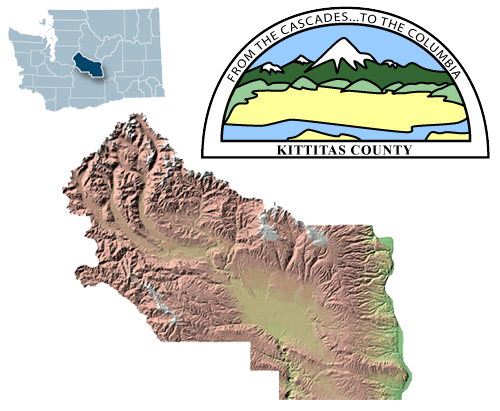
Kittitas (pronounced 'kit-i-tass') County is located in central Washington State. It spans from the lush forested Cascade Mountains to the upper Yakima River Valley plains and the Columbia River.
The information provided by Kittitas County is provided 'as is' and is for reference only. The user expressly agrees that the use of Kittitas County's website is at the user's sole risk. Kittitas County does not warrant that the service will be uninterrupted or error free. Any information published on this server could contain technical inaccuracies or typographical errors. Changes may be made periodically to the tax laws, administrative rules, tax releases and similar materials; these changes may or may not be incorporated in any new materials on the web site.
Kittitas County makes every effort to produce and publish the most current and accurate information possible; however, Kittitas County makes no warranties, expressed or implied, regarding the data provided, its use, or its interpretation. Kittitas County does not guarantee the accuracy of the material contained herein and is not responsible for any use, misuse or representations by others regarding this information or its derivatives.
If you have obtained information from a source other than Kittitas County, be aware that electronic data can be altered subsequent to original distribution. Data can also quickly become out-of-date. It is recommended that careful attention be paid to the contents of any data associated with a file, and that the originator of the data or information be contacted with any questions regarding appropriate use. You should always use the original recorded documents for legal transactions.
In no event shall Kittitas County become liable to users of this data, or any other party, for any loss or damages, consequential or otherwise, including but not limited to time, money or goodwill, arising from the use, misuse, operation or modification of the data. In using the data, users, direct and indirect, further agree to indemnify, defend, and hold harmless Kittitas County for any and all liability of any nature arising out of or resulting from the lack of accuracy, currency or completeness, or correctness of the data, the use or misuse of the data. In addition, the information on this server, or site, is subject to change without notice and does not represent a commitment on the part of Kittitas County in the future.

Online Help:
COMPAS provides the general public and other interested parties local government property tax and assessment information. This application is used by local governments and citizens on a desktop PC, mobile phone, or tablet device.
To locate a parcel, simply click on the map or enter an address or parcel number in the search box and select a parcel from the list.
Feel free to submit comments and/or feedback to Kittitas County GIS.
Using the Application
This application offers a map-based view of tax parcel information that enables supporting agencies, organizations and the general public to locate an area of interest and review common information stored typically in the local government’s computer aided mass appraisal (CAMA) and tax receivables database. It offers a standard overview of property data in a community for real estate professionals and other consumers so they can view this information on all homes as they walk or drive through neighborhoods.
Users are able to search for a specific address or parcel number, view authoritative property characteristics, get detailed information about districts and critical areas for permit review, and email this information to a friend or co-worker.
Major Changes From Previous Version
The prior version of COMPAS contained a list of layers that you could turn off or on and contained a lot of toolbar buttons and menu items. We gathered information about how the old version of COMPAS was being used; which layers where being turned on, which buttons were being clicked, etc, and built this new version with a more focused approach to only contain the functionality that was being used the majority of the time.
The major layers (Floodways, DNR Water Type, Shorelines, and Wetlands) can be added through the parcel results frame. The other two major layers, Zoning and Landuse can be added from the base map switcher
Map Based Navigation
There are several ways to interact with the map:
- Use the base map switcher(not available on smartphone) to select the base map you'd like to interact with
- Hold down the shift key and drag a box on the map to zoom in
- Hold Down Ctrl+Shift to zoom out
- Roll your mouse roller to zoom in/out
- Click the zoom slider to zoom in/out
Layers:
There are 2 layers; zoning and landuse that you can add to the map for additional information. If the imagery base map is selected, you also have an additional option to turn the parcel lines on.
Finding an Area of Interest
There are three primary ways to identify an area of interest. You can interact directly with the map and click on a parcel when you've located it. You can use your current location
 (on mobile devices), or finally search
 for a parcel using a full or partial address, Parcel ID, Map Number, or owner name.
The Results Window
The results window is where you will find all your information specific to the selected parcel and is your gateway to gathering additional information. You can now also select multiple parcels to highlight for a report
by using the "Select Additional Parcels" button 
Property
The property tab displays information about parcel ownership. The parcel number is linked back to TaxSifter for this property.
Districts
The Districts tab displays all the districts that this parcel resides in. Some district values can be clicked to show the extent of that district boundary. To remove the added district boundary, select another parcel.
Critical Areas
The Critical Areas tab will give you critical area information about the parcel. This is the same information used by our Planning Department (Community Development Services) when evaluating permit applications. Four additional layers can be added from this tab by clicking the values of "Shore Line", "Wetland Code", "DNR Water Type", or "FIRM Zone". For example, a value of "100 year" is displayed next to the "FIRM Zone". This means that a 100 year flood plain exists on the parcel. Cick the value of "100 year" to add the floodway layer to COMPAS to see exactly where that floodway crosses the parcel. You can remove this layer by selecting another parcel.
Searching
The search box can be used to find a parcel:
- Enter a complete or partial address, Parcel ID, Map Number, or owner name
- Click on the item in the results list to locate the parcel on the map
 Tools
Tools
Generate a Mailing List - You can identify surrounding properties and generate a mailing list once you've identified a subject property. Before you start the notification process, you can add neighboring parcels to your selection. To start the notification process, you'll need to:
- Enter the buffer distance (this will select every property that touches a buffer created from the perimeter of the subject property)
- Select who you'd like to notify (Property Owners, Property Occupants, or both)
- Select Download Avery labels in PDF format if you'd like to generate preformatted mailing labels in Avery 5160 or 5193 format
- Select Download in CSV format if you'd like to generate a preformatted text file
- Click Download. NOTE: The first time you do this on your computer, you may need to acknowledge the popup blocker to allow popups from COMPAS.
 ,
, ,
, Click the units dropdown to change measure units. You will be in "measure mode" as long as the "Measure" tab is selected.
 Standard Maps and Reports
The application also provides users a standard set of parcel maps and reports. When a user accesses COMPAS on a desktop PC or tablet device, reports can be generated for the selected parcel.
The reports frame is divided into 2 sections; Click the download button under "Create Property Report" to export the parcel information content. To create a map ("Create Property Map"), enter a map title and choose to either preserve the map scale, or the map extent. If you preserve the map scale, the size of the features on-screen will be preserved. if you preserve the map extent, the size of the features may change but you will print the map area that you see on-screen. The default is to preserve the map scale.
 Share Your Map
You can click on the Share Map button to share your map several different ways. You can compose an email, post to your Facebook wall or post a Tweet. When you use the Facebook or Twitter links, you'll be asked to sign in to your respective account.
Browser Compatibility
COMPAS is supported on the following browsers: Microsoft IE 9/10/11, Mozilla Firefox, Google Chrome, Apple Safari, iOS Safari 4.0+, and Android Chrome 2.3+.
Known Issues
Loading the Application
The application will not load properly if you are running the site from Internet Explorer in "Compatibility Mode". Remove compatibility mode using the following procedure:
- Go to the gear top right
- Choose compatibility view settings
- Remove any sites in the list and uncheck all boxes on the bottom
- Refresh page